How I Fixed Google's Red Warning on Supabase Password Reset Links
You know that sinking feeling when users start reporting they can’t reset their passwords? Yeah, I had that moment last week.
I was building an app with Supabase’s free tier—everything was smooth until users started hitting the password reset flow. Instead of a clean reset experience, they were greeted with Google’s scary red warning page: “Deceptive site ahead.” Not exactly the vibe you want when someone’s already frustrated about forgetting their password.
Here’s what was happening and how I solved it without upgrading my Supabase plan or compromising security.
The Problem: Why Google Doesn’t Trust Supabase URLs
Supabase generates password reset links that look something like this:
https://your-project.supabase.co/auth/v1/verify?token=...&type=recoveryOn the free tier, these links sometimes get flagged by Google Safe Browsing. Why? Because they’re:
- Generic domain patterns that bad actors also use
- Direct authentication endpoints (which can look suspicious)
- Shared infrastructure across thousands of projects
Google’s being protective, which is great for security overall—just not great for your user experience.
The Fix: A Cloudflare Worker as Your Trusted Middleman
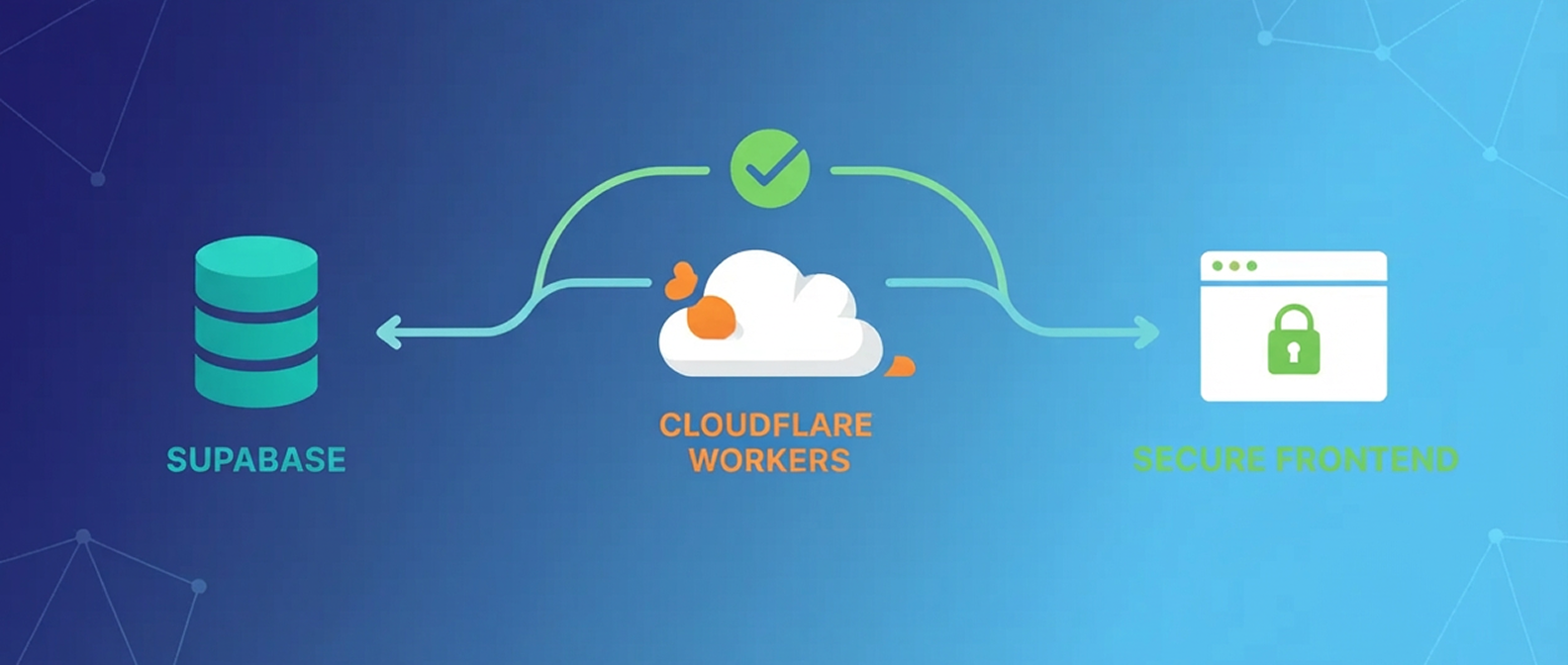
Instead of sending users directly to Supabase’s URL, I built a tiny Cloudflare Worker that acts as a trusted bridge. Think of it as a friendly translator between Supabase and your app.
Here’s the flow:
- User clicks the reset link (now pointing to your domain via Cloudflare)
- Worker receives the token securely
- Worker verifies it with Supabase behind the scenes
- Worker creates a session and redirects to your app
- User lands safely on your password reset page
No warnings. No scared users. Just a smooth experience.
Setting It Up
Step 1: Create Your Cloudflare Worker
Head over to your Cloudflare dashboard and create a new Worker. You can name it something like supabase-auth-handler or whatever makes sense for your project.
Once created, replace the default code with this:
import { createClient } from "@supabase/supabase-js";

export interface Env {
  CLIENT_URL: string;
  SUPABASE_URL: string;
  SUPABASE_ANON_KEY: string;
}

export default {
  async fetch(request, env, ctx): Promise<Response> {
    if (request.method !== "GET") {
      return new Response("Method not allowed", { status: 405 });
    }

    const url = new URL(request.url);
    const token_hash = url.searchParams.get("token_hash");
    const type = url.searchParams.get("type");
    const next = url.searchParams.get("next") || "/";

    if (!token_hash || !type) {
      return Response.redirect(
        `${env.CLIENT_URL}/auth/error?error=${encodeURIComponent("Missing token or type")}`,
        302
      );
    }

    // Validate type is a recovery type
    if (type !== "recovery" && type !== "email") {
      return Response.redirect(
        `${env.CLIENT_URL}/auth/error?error=${encodeURIComponent("Invalid type")}`,
        302
      );
    }

    try {
      const supabase = createClient(
        env.SUPABASE_URL,
        env.SUPABASE_ANON_KEY,
        {
          auth: {
            autoRefreshToken: false,
            persistSession: false,
          },
        }
      );

      // Verify the OTP token
      const { data, error } = await supabase.auth.verifyOtp({
        type,
        token_hash,
      });

      if (error) {
        console.error("Verification error:", error.message);
        return Response.redirect(
          `${env.CLIENT_URL}/auth/error?error=${encodeURIComponent(error.message)}`,
          302
        );
      }

      // Successfully verified - redirect to client with session tokens
      if (data?.session) {
        const redirectUrl = new URL(`${env.CLIENT_URL}/new-password`);
        redirectUrl.searchParams.set("access_token", data.session.access_token);
        redirectUrl.searchParams.set("refresh_token", data.session.refresh_token);
        redirectUrl.searchParams.set("next", next);

        return Response.redirect(redirectUrl.toString(), 302);
      }

      // No session returned
      return Response.redirect(
        `${env.CLIENT_URL}/auth/error?error=${encodeURIComponent("No session returned")}`,
        302
      );
    } catch (err) {
      console.error('Worker error:', err);
      return Response.redirect(
        `${env.CLIENT_URL}/auth/error?error=${encodeURIComponent('Internal server error')}`,
        302
      );
    }
  },
} satisfies ExportedHandler<Env>;
What’s happening here?
The worker is pretty straightforward. It grabs the token from the URL, validates it’s legit, then uses Supabase’s client to verify the token behind the scenes. If everything checks out, it creates a session and redirects the user to your app with the tokens they need.
Notice the persistSession: false part? That’s crucial because Cloudflare Workers are stateless—they don’t keep data between requests. We’re just doing a quick verification and passing the session along.
Step 2: Set Up Environment Variables
In your Worker settings, add these three environment variables:
CLIENT_URL- Your frontend URL (likehttps://yourdomain.com)SUPABASE_URL- From your Supabase project settingsSUPABASE_ANON_KEY- Your public anon key from Supabase
These keep your configuration flexible and secure. No hardcoding URLs.
Step 3: Update Your Supabase Email Template
Now head to your Supabase dashboard → Authentication → Email Templates → Reset Password.
Replace the existing link with this:
<h2>Reset Password</h2>

<p>Follow this link to reset the password for your user:</p>
<p>
  <a href="https://your-worker.workers.dev?token_hash={{ .TokenHash }}&type=recovery&next={{ .RedirectTo }}">
    Reset Password
  </a>
</p>
Make sure to replace your-worker.workers.dev with your actual Cloudflare Worker URL.
Those {{ .TokenHash }} and {{ .RedirectTo }} bits are Supabase’s template variables—they’ll automatically populate with the right values when the email goes out.
Step 4: Handle the Session on Your Frontend
When the worker redirects users to your /new-password page, it’ll include the session tokens in the URL. Here’s how to handle that in your frontend:
// In your password reset page component
const params = new URLSearchParams(window.location.search);
const accessToken = params.get('access_token');
const refreshToken = params.get('refresh_token');

if (accessToken && refreshToken) {
  // Set the session with Supabase
  await supabase.auth.setSession({
    access_token: accessToken,
    refresh_token: refreshToken,
  });

  // Now let the user set their new password
}
Once the session is set, users can update their password using Supabase’s standard updateUser method.
Why This Actually Works
The beauty of this approach is that you’re not changing how Supabase works or compromising security. You’re just adding a trusted layer that:
- Uses your domain (which isn’t flagged)
- Handles verification server-side (more secure anyway)
- Gives you control over the redirect flow
- Costs basically nothing (Cloudflare’s free tier is generous)
Plus, if you ever need to add logging, rate limiting, or custom validation, you’ve got a perfect place to do it.
The Setup Takes Ten Minutes
Seriously. Deploy the worker, update your email template, and test it. The entire process took me longer to troubleshoot than to implement once I figured out the pattern.
And your users? They’ll never know there was a problem in the first place. They’ll just experience a smooth, professional password reset flow like they should have from the beginning.
One Last Thing
If you’re building on Supabase’s free tier (and honestly, why wouldn’t you for early-stage projects?), this pattern is worth keeping in your back pocket. It’s not just about password resets—any time Supabase generates a verification link, you can apply the same approach.
Email confirmations, magic links, invite flows—they all benefit from having your own domain in front of them. Plus, you get better analytics and control over the entire auth flow.
Building MVPs means finding these practical solutions that don’t require upgrading plans or over-engineering. This one’s a keeper.
Implementation Checklist
Ready to fix those warnings? Track your progress here:
Fix Supabase Warnings
0% CompleteHaving auth headaches with your Supabase setup? I’ve been there. Feel free to reach out—I’m always down to talk through implementation details.
turn your product into content that clicks.
ravah turns your product knowledge and weekly progress into authentic social content — no re-explaining, no templates. set up once, post every week.
More Posts
How We Built a Tracked Email Funnel with PostHog + Supabase
A technical deep-dive into building a lifecycle email system where every send, delivery, and bounce is observable end-to-end using Supabase Edge Functions, Resend, and PostHog.

Why Your MVP Isn't Enough: The Case for Minimum Lovable Products
Discover why launching a bare-bones MVP might be holding your startup back and how building a Minimum Lovable Product (MLP) can create true user connection.

